
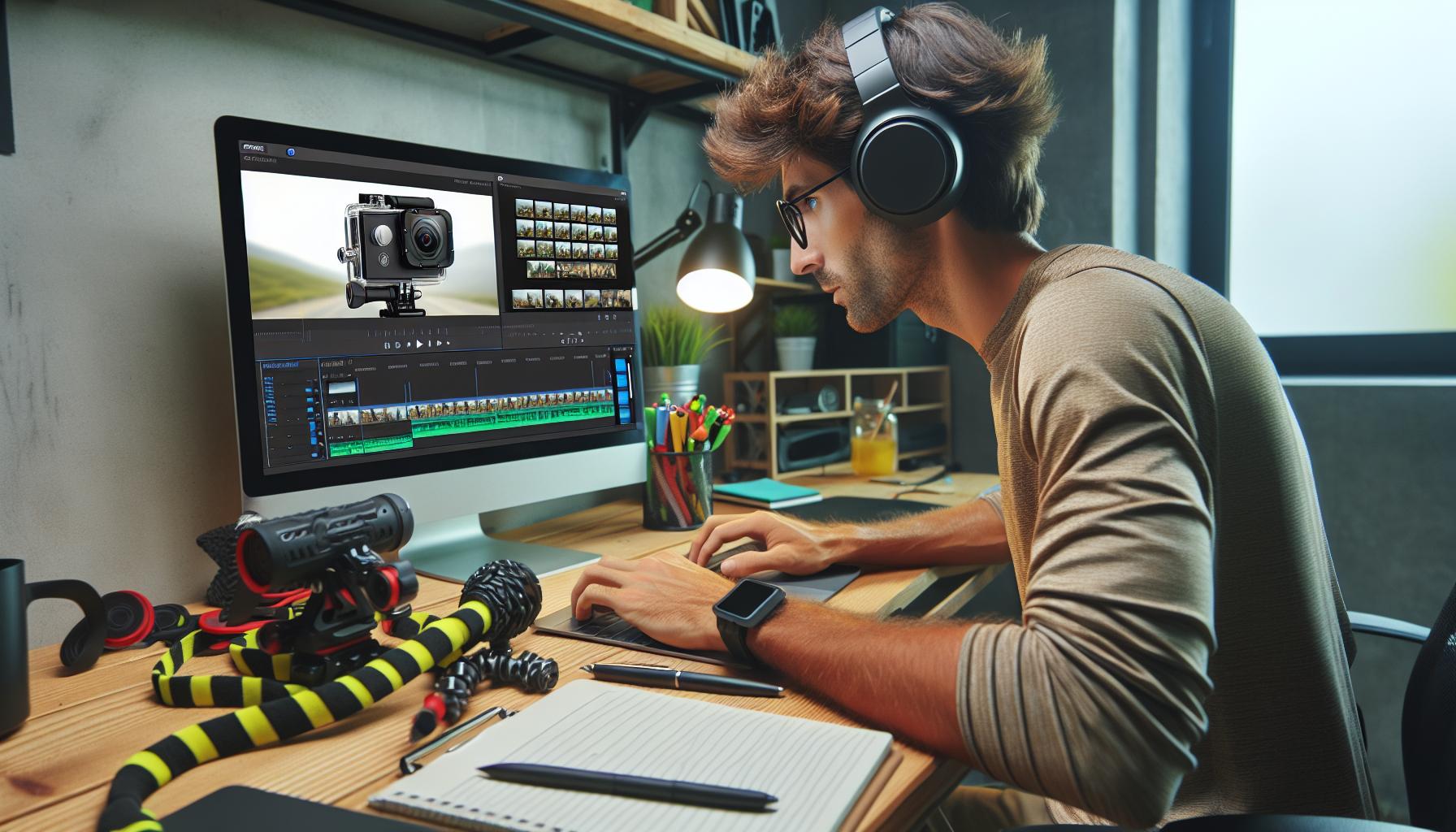
I’ve spent countless hours editing GoPro footage from my outdoor adventures and I know firsthand how overwhelming it can be to turn raw clips into captivating videos. Whether you’re capturing epic ski runs down snowy slopes or immersive underwater scenes while diving GoPro footage requires specific editing techniques to truly shine.
As an action camera enthusiast I’ll walk you through the essential steps to transform your shaky footage into professional-looking content that’ll wow your viewers. From choosing the right editing software to applying stabilization tricks and color correction I’ve learned what works best for GoPro’s unique wide-angle footage. With the right approach you’ll be able to create stunning videos that capture all the excitement of your adventures without the common pitfalls that plague many action camera clips.
Essential GoPro Video Editing Tools and Software
I’ve tested numerous editing solutions for GoPro footage over the years, identifying the most effective tools for both desktop and mobile platforms. These applications offer specific features optimized for action camera content, ensuring smooth editing workflows.
Best Desktop Editing Applications
Professional GoPro video editing demands robust desktop software with advanced capabilities. Here are the top desktop applications I trust for editing GoPro content:
-
Adobe Premiere Pro
- Native GoPro codec support
- Advanced stabilization features
- Professional color grading tools
- Multiple timeline editing
-
DaVinci Resolve
- Free version available
- Industry-standard color correction
- Built-in motion tracking
- High-performance rendering
-
GoPro Quik Desktop
- Direct camera file import
- Automated highlight detection
- Template-based editing
- Quick export options
Mobile Apps for Quick Edits
Mobile editing apps provide immediate post-capture adjustments for GoPro footage. These are my preferred mobile solutions:
-
GoPro Quik Mobile
- Wireless footage transfer
- Auto-generated video stories
- Basic trimming tools
- Built-in music library
-
LumaFusion
- Multi-track timeline
- Professional transitions
- Advanced export settings
- Custom preset options
- Simple interface
- Quick clip assembly
- Social media optimization
| Software Type | Processing Speed | Free Version | Pro Features |
|---|---|---|---|
| Desktop Apps | High | Limited | 100+ |
| Mobile Apps | Moderate | Basic | 25-50 |
Preparing Your GoPro Footage for Editing
Before diving into the editing process, I organize my GoPro footage systematically to create an efficient workflow. This preparation phase ensures smooth editing and helps maintain project organization throughout the process.
File Organization and Storage
I create a dedicated folder structure with specific naming conventions for each GoPro project:
- Main Project Folder: YYYYMMDD_ProjectName
- Raw Footage: /Raw
- Edited Clips: /Edited
- Final Exports: /Export
- Project Files: /Project
- Media Assets: /Assets
For storage optimization, I maintain two backups:
- External SSD for active projects
- Cloud storage for archived footage
Importing and Converting Video Files
I convert GoPro footage to editing-friendly formats using these specifications:
| Format Type | Codec | Resolution | Frame Rate |
|---|---|---|---|
| Working Files | ProRes 422 | Original | Original |
| Proxy Files | H.264 | 1080p | Original |
| Final Export | H.265 | 4K | 30/60fps |
- Transferring files from SD card to main storage
- Creating proxy files for smoother editing
- Organizing clips by shooting date or sequence
- Renaming files with descriptive titles
- Checking metadata for camera settings
Basic GoPro Editing Techniques

I’ve mastered several fundamental techniques for editing GoPro videos that transform raw footage into engaging content. These essential methods focus on creating smooth transitions, enhancing visual quality, and maintaining viewer interest throughout the video.
Trimming and Combining Clips
My first step in editing GoPro videos involves removing unnecessary footage and combining the best segments. I select dynamic moments that capture peak action, trim out shaky transitions between shots, and arrange clips in a sequence that tells a cohesive story. Here’s my proven approach:
- Cut the first 3-5 seconds where the camera settles after pressing record
- Remove blurry or unstable sections between primary actions
- Create seamless transitions using J-cuts or L-cuts between clips
- Link similar movements across different shots for fluid motion
- Keep action sequences under 15 seconds to maintain engagement
Color Correction and Stabilization
GoPro footage requires specific adjustments to achieve professional-quality results. I apply precise color correction techniques and stabilization to enhance the visual appeal:
- Adjust exposure levels to balance bright outdoor scenes
- Fine-tune contrast settings to enhance depth in flat footage
- Apply color temperature corrections to match clips from different times
- Enable ReelSteady or HyperSmooth stabilization for smooth motion
- Add lens distortion correction to remove fisheye effects
| Setting | Adjustment Range |
|---|---|
| Exposure | +/- 1.5 stops |
| Contrast | 10-20% increase |
| Saturation | 5-15% boost |
| Sharpness | 10-25% enhancement |
| Stabilization | 15-30% strength |
Adding Professional Effects

Professional effects elevate GoPro videos from basic recordings to cinematic productions. I’ve mastered several techniques to enhance my action camera footage through strategic use of transitions speed controls text elements.
Transitions and Speed Adjustments
I apply dynamic transitions like cross dissolves wipes zoom transitions to create smooth flow between clips. For action sequences I implement speed ramping – accelerating through mundane moments then slowing down to 50% speed during key highlights. Here’s how I optimize speed effects:
- Set keyframes at precise moments to create smooth speed variations
- Use speed ramping during POV shots to emphasize dramatic moments
- Apply time warps for creative transitions between scenes
- Implement freeze frames for 2-3 seconds to highlight epic moments
Text Overlays and Graphics
- Lower thirds to display location names dates descriptions
- Animated titles using preset templates or custom animations
- Social media handles watermarks for branding
- Data overlays showing speed altitude GPS coordinates
- Motion tracking text that follows moving subjects
| Effect Type | Recommended Duration | Best Use Case |
|---|---|---|
| Speed Ramps | 2-4 seconds | Action sequences |
| Text Overlays | 3-5 seconds | Location/info display |
| Transitions | 0.5-1 second | Scene changes |
| Motion Graphics | 2-3 seconds | Intro/outro segments |
Advanced GoPro Editing Tips

I leverage advanced editing techniques to transform raw GoPro footage into professional-quality content that captures viewers’ attention. These advanced methods elevate standard action camera videos into cinematic experiences.
Multi-Camera Editing
I synchronize multiple GoPro cameras using visual cues or audio waveforms to create dynamic perspectives. When editing footage from 2-3 mounted GoPros, I align clips by matching distinct moments like a hand clap or sudden movement. For seamless transitions between angles, I use:
- Match cuts based on motion direction
- Split-screen effects showing simultaneous action
- Picture-in-picture overlays for detailed views
- Cross-dissolves timed to music beats
- Quick cuts between angles during high-energy sequences
Sound Design and Music
I enhance GoPro videos by creating layered soundscapes that complement the visual elements. My audio workflow includes:
- Isolating usable natural sounds from GoPro’s built-in mic
- Adding ambient sound effects for environment authenticity
- Incorporating foley effects for impact moments
- Mixing background music at -12db to -15db
- Using audio transitions like crossfades
- Syncing sound effects with visual cuts
| Layer | Content | Volume Range |
|---|---|---|
| Top | Key sound effects | -6db to -3db |
| Middle | Voice/natural audio | -9db to -6db |
| Bottom | Background music | -15db to -12db |
Exporting and Sharing Your GoPro Videos
After completing the editing process, I optimize my GoPro videos for different platforms using specific export settings to maintain quality while managing file sizes effectively.
Optimal Export Settings
I export my GoPro videos using these proven settings for optimal quality:
- Resolution: 4K (3840×2160) for highest quality or 1080p (1920×1080) for web sharing
- Frame Rate: Match original footage (30fps/60fps) to maintain smooth motion
- Codec: H.264 for wide compatibility or H.265 for smaller file sizes
- Bitrate: 60Mbps for 4K or 20Mbps for 1080p content
- Audio: AAC format at 320kbps for clear sound
- Color Space: Rec.709 for standard viewing devices
- File Format: MP4 for maximum platform compatibility
Publishing Platforms
I distribute my edited GoPro content across these platforms:
Social Media
- Instagram: 60-second vertical clips (1080×1920)
- YouTube: Full-length videos in 4K resolution
- TikTok: 15-60 second vertical clips (1080×1920)
- Facebook: Compressed 1080p for better loading times
- Google Drive: Original quality exports for clients
- Vimeo: High-bitrate 4K for portfolio showcase
- WeTransfer: Large file transfers to collaborators
- Dropbox: Project file backups with sharing capabilities
| Platform | Max Resolution | Max Duration | Recommended Bitrate |
|---|---|---|---|
| YouTube | 4K | Unlimited | 45-60 Mbps |
| 1080p | 60 seconds | 15-20 Mbps | |
| TikTok | 1080p | 3 minutes | 15-20 Mbps |
| 1080p | 240 minutes | 20-30 Mbps |
Conclusion
Creating captivating GoPro videos requires more than just capturing great footage. I’ve found that successful editing combines technical expertise organization and creative vision. With the right tools and techniques I’ve shared you’ll be well-equipped to transform your raw footage into stunning visual stories.
Whether you’re using professional software or mobile apps the key is to maintain a consistent workflow and pay attention to details. Remember that practice makes perfect and each video you edit will help you develop your unique style.
Don’t be afraid to experiment with different effects transitions and storytelling techniques. Your GoPro footage holds endless creative possibilities – it’s time to bring them to life through thoughtful editing.